

How do I troubleshoot a flickering LCD wall clock display?
Nov 06, 2025
As a supplier of LCD wall clocks, I often encounter customers facing issues with their clock displays, and one of the most common problems is a flickering display. In this blog, I'll share some effective troubleshooting steps to help you resolve this annoying issue.
1. Check the Power Source
The first and most basic step in troubleshooting a flickering LCD wall clock display is to examine the power source. A fluctuating or unstable power supply can cause the display to flicker.
- Battery - Powered Clocks: If your LCD wall clock is battery - operated, start by checking the batteries. Old or low - quality batteries may not provide a consistent voltage, leading to a flickering display. Replace the batteries with new, high - quality ones. Make sure the batteries are inserted correctly, with the positive and negative terminals aligned properly. Sometimes, corrosion on the battery contacts can also disrupt the power flow. Use a dry cloth or a small amount of vinegar on a cotton swab to clean the contacts gently.
- Plug - in Clocks: For clocks that are plugged into an electrical outlet, check the power cord for any visible damage, such as frayed wires or loose connections. Try plugging the clock into a different outlet to see if the problem persists. A faulty outlet or a power surge in the electrical circuit can cause the clock display to flicker. You can also use a surge protector to safeguard the clock from sudden power spikes.
2. Inspect the Display for Physical Damage
Physical damage to the LCD display itself can result in flickering.
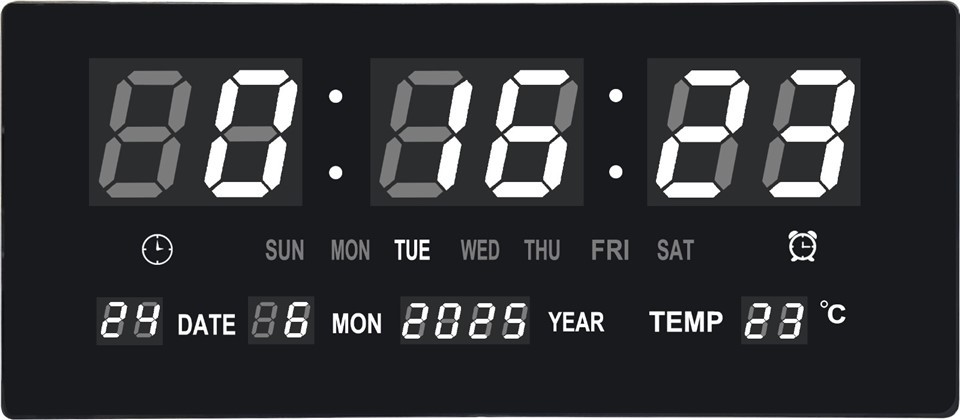

- Cracks or Scratches: Carefully examine the LCD screen for any cracks or scratches. Even a small crack can disrupt the electrical signals within the display, causing it to flicker. If you find a crack, unfortunately, the display may need to be replaced. In some cases, minor scratches can also interfere with the display's performance. You can try using a specialized LCD screen cleaner and a soft microfiber cloth to clean the screen gently. This may help remove any debris or smudges that could be affecting the display.
- Loose Connections: The connections between the LCD panel and the clock's circuit board can become loose over time. Open the back of the clock (make sure to follow the manufacturer's instructions and disconnect the power source first) and check for any loose wires or connectors. If you find a loose connection, carefully re - attach it. However, if you're not comfortable working with electronics, it's best to seek professional help.
3. Consider Environmental Factors
The environment in which the LCD wall clock is placed can have a significant impact on its performance.
- Temperature and Humidity: Extreme temperatures and high humidity levels can cause the LCD display to malfunction. LCDs are sensitive to temperature changes, and if the clock is placed in an area that is too hot or too cold, it may start to flicker. Try moving the clock to a more moderate environment. For example, avoid placing it near a heater, air conditioner, or in a damp basement.
- Lighting Conditions: Strong external light sources, especially direct sunlight or bright artificial light, can cause reflections on the LCD screen, which may appear as flickering. Adjust the position of the clock to reduce the amount of light hitting the screen. You can also use curtains or blinds to block out direct sunlight if the clock is near a window.
4. Check for Interference
Electromagnetic interference (EMI) from other electronic devices can affect the performance of the LCD wall clock.
- Nearby Electronics: Keep the clock away from other electronic devices such as televisions, radios, microwave ovens, and Wi - Fi routers. These devices emit electromagnetic waves that can interfere with the clock's display. Try moving the clock to a different location in the room to see if the flickering stops.
- Power Lines: Sometimes, power lines can also cause interference. If the clock is placed too close to a power line or electrical wiring, it may experience flickering. Moving the clock to a different area can help eliminate this problem.
5. Update the Clock's Firmware (if applicable)
Some modern LCD wall clocks come with firmware that can be updated. Outdated firmware may contain bugs or glitches that can cause the display to flicker.
- Check the Manufacturer's Website: Visit the manufacturer's official website to see if there are any firmware updates available for your clock model. Follow the instructions provided on the website to download and install the update. Make sure to back up any important settings on the clock before performing the update.
- Contact Customer Support: If you're having trouble finding or installing the firmware update, contact the manufacturer's customer support. They can provide you with detailed instructions and assistance.
Related Products
If you're interested in other types of clocks, we also offer a range of high - quality products. Check out our BIG LED Clock, BIG LED Wall Clock, and LED Large Screen Clock. These clocks are designed to provide clear and reliable timekeeping, with large and easy - to - read displays.
Conclusion
A flickering LCD wall clock display can be a frustrating problem, but by following these troubleshooting steps, you can often identify and resolve the issue. If you've tried all these steps and the problem still persists, it may be time to consider replacing the clock or contacting a professional repair service.
As a leading supplier of LCD wall clocks, we are committed to providing high - quality products and excellent customer service. If you're interested in purchasing our LCD wall clocks or have any questions about our products, please feel free to contact us for procurement and negotiation. We look forward to serving you!
References
- General knowledge of electronics and LCD display technology.
- Experience as an LCD wall clock supplier dealing with customer issues.