

How to connect external devices to a BIG LED Clock (if applicable)?
Nov 14, 2025
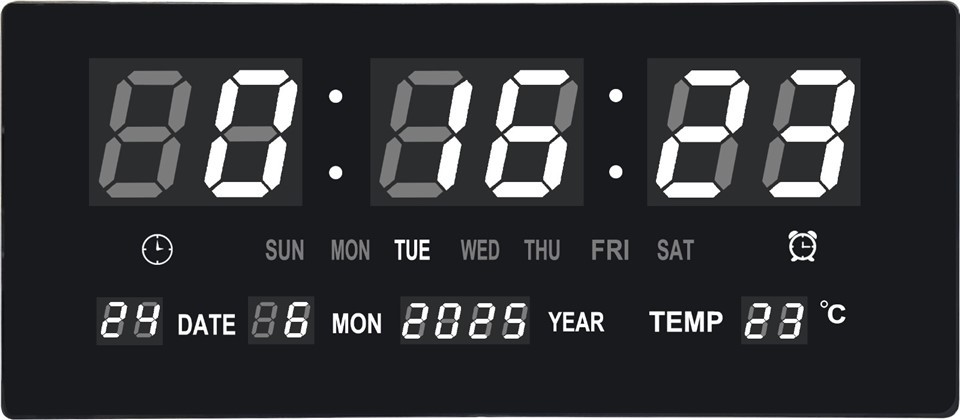
Hey there! As a supplier of BIG LED Clocks, I often get asked about how to connect external devices to these awesome time - keepers. In this blog, I'll break down the whole process for you, so you can make the most out of your BIG LED Clock.
Why Connect External Devices to a BIG LED Clock?
Before we jump into the how - to, let's talk about why you might want to connect external devices to your BIG LED Clock. These clocks aren't just for telling time; they can be so much more. Connecting devices like a computer, a media player, or a sensor can add extra functionality. For example, you could display real - time data, play music, or synchronize the clock with other systems.
Types of External Devices You Can Connect
There are several types of external devices that you can connect to a BIG LED Clock. Here are some common ones:
Computers
Connecting a computer to your BIG LED Clock allows you to display custom content. You can show images, videos, or even live feeds. It's great for events, advertising, or just adding a personal touch to the clock. Check out our LED Display Wall Clock for models that are well - suited for computer connections.
Media Players
Media players like USB flash drives or external hard drives are a simple way to play pre - loaded content on the clock. You can store videos, slideshows, or audio files and have them play directly on the clock's display. Our LED Digital Wall Clock models often support media player connections.
Sensors
Sensors can be used to gather data and display it on the clock. For instance, a temperature sensor can show the current temperature alongside the time. This is useful in places like factories, warehouses, or public buildings.
Steps to Connect External Devices
Step 1: Check the Compatibility
The first thing you need to do is make sure your BIG LED Clock is compatible with the external device you want to connect. Check the clock's manual or product specifications. Most of our BIG LED Wall Clock models come with detailed information about supported devices and connection methods.
Step 2: Gather the Necessary Cables
Depending on the device, you'll need different cables. For a computer connection, you might need an HDMI, VGA, or DisplayPort cable. If you're using a USB media player, a simple USB cable will do. Make sure the cables are in good condition and the right length for your setup.
Step 3: Power Off the Clock
Before making any connections, turn off the BIG LED Clock. This helps prevent any electrical damage to the clock or the external device.
Step 4: Make the Connection
Connect one end of the cable to the appropriate port on the external device and the other end to the corresponding port on the clock. For example, if you're connecting a computer via HDMI, plug the HDMI cable into the computer's HDMI output and the clock's HDMI input.
Step 5: Power On and Configure
Once the connection is made, power on the clock and the external device. You may need to configure some settings on the clock to recognize the connected device. This could involve selecting the input source on the clock's menu.
Troubleshooting Common Connection Issues
Sometimes, things don't go as smoothly as we'd like. Here are some common issues and how to fix them:
No Signal
If the clock doesn't show any content from the connected device, first check the cables. Make sure they're securely plugged in. You might also need to adjust the input source on the clock. If you're using a computer, check the display settings to ensure it's set to output to the clock.

Poor Image Quality
A blurry or distorted image could be due to a low - quality cable or incorrect resolution settings. Try using a different cable or adjusting the resolution on the connected device to match the clock's native resolution.
Device Not Recognized
If the clock doesn't recognize the external device, it could be a compatibility issue. Check if the device is on the list of supported devices. You might also need to update the clock's firmware to add support for new devices.
Maintenance and Tips for Long - Term Use
To keep your connected BIG LED Clock working well, here are some maintenance tips:
- Keep the Cables Organized: Tangled cables can lead to damage and connection problems. Use cable ties or clips to keep them neat.
- Clean the Display Regularly: Dust and dirt can affect the image quality. Use a soft, dry cloth to clean the clock's display.
- Update the Firmware: Periodically check for firmware updates for your clock. These updates can improve performance and add new features.
Conclusion
Connecting external devices to a BIG LED Clock can greatly enhance its functionality and make it a more versatile tool. Whether you're using it for advertising, data display, or just for fun, following the steps above will help you get the most out of your clock.
If you're interested in purchasing a BIG LED Clock or have any questions about connecting external devices, don't hesitate to reach out. We're here to help you find the perfect clock for your needs and guide you through the connection process.
References
- Manufacturer's manuals for BIG LED Clocks
- Technical documentation for external devices